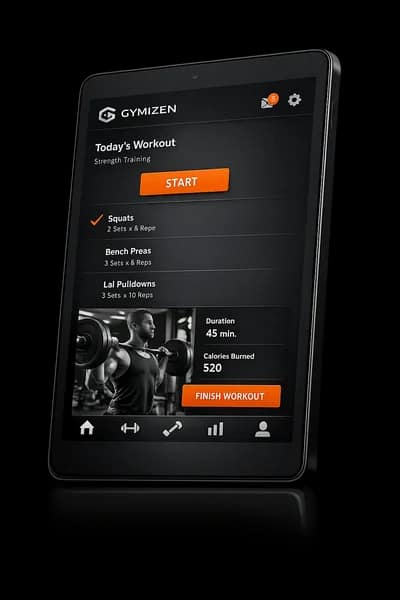


If you run a boutique fitness business, your reservation and waitlist rules are either (1) a quiet retention engine or (2) a daily support-ticket generator. Most studios don’t fail because they “don’t have a waitlist.” They fail because the team doesn’t trust the rules, so exceptions pile up, the front desk improvises, and members learn that policies are negotiable.
This guide is an implementation playbook for owners and managers rolling out Gymizen class reservations, waitlists, and attendance workflows with approval-gated overrides. The goal is simple: protect class quality and member trust while still giving your team a safe way to handle edge cases.
You’ll leave with recommended defaults, role-by-role responsibilities, QA checks, common mistakes to avoid, and a 14‑day rollout timeline you can actually follow.
What “good” looks like (the target operating state)
- Members self-serve confidently: they can book, join waitlists, and understand what happens next without calling you.
- Capacity is real: coaches aren’t surprised by overfilled classes, and you don’t regularly “squeeze one more in.”
- Waitlists move automatically: the system promotes members when spots open, within your rules.
- Exceptions are controlled: staff can request an override, but it requires approval and leaves a clear audit trail.
- Attendance is accurate: rosters are finalized, no-shows are handled consistently, and your reporting reflects reality.
- Front desk stress drops: fewer in-the-moment decisions, fewer arguments at the desk, fewer “can you just…” messages.
Prerequisites (before you touch settings)
This playbook assumes you have Gymizen access as an Owner or Admin and you’ve already done your basic workspace onboarding (locations created, staff accounts created, and your pricing catalog is at least roughly defined). If any of those are still in flux, pause and stabilize them first—reservation rules sit on top of that foundation.
- Class inventory: list your class types (e.g., CrossFit, Yoga Flow, Reformer Pilates, Kickboxing, Foundations, Open Gym).
- Capacity constraints: per class type and (if relevant) per room, station count, bag count, reformer count, mats, etc.
- Booking window: how far in advance members can book (and whether it differs by membership tier).
- Cancel window: your cutoff for penalty-free cancellation (if you enforce it).
- Waitlist policy: when auto-promotion stops (e.g., 2 hours before class) and whether promotions require confirmation.
- Check-in method: front desk check-in, coach-led check-in, or both.
- Exception philosophy: which exceptions you’re willing to make, and who can approve them.
Operator rule: If your team can’t explain a rule in one sentence, it’s too complex to enforce consistently.
Recommended defaults (a starting point that works for most boutiques)
Use these as defaults unless you have a clear operational reason not to. The point is to start with clean, enforceable rules—then iterate based on member behavior and staff load.
- Booking window: 7 days in advance for most memberships; 10–14 days only if you truly need a premium perk.
- Member self-serve cancellation: allowed up to your cancel window; after that, require an approval-gated exception (not a free-for-all).
- Waitlist enabled: on any class that hits 85–95% utilization during peak times.
- Auto-promotion cutoff: stop auto-promote 2 hours before class (or earlier if your members need more travel time).
- Promotion grace period: 30 minutes to accept a promoted spot (or immediate acceptance if your market expects it).
- Roster lock: lock or “finalize” attendance shortly after class start so reporting stays clean.
- Overrides: only Managers (or Owner) can approve adds beyond capacity, late cancels, or “manual promotion” from waitlist.
Role-by-role responsibilities (so nothing falls through cracks)
- Defines the non-negotiables: capacity integrity, exception philosophy, and what requires approval.
- Approves the final defaults and signs off before go-live.
- Reviews first two weeks of outcomes and adjusts policy once—not daily.
- Configures class types, capacities, booking rules, waitlist rules, and approval gates in Gymizen.
- Owns QA checks and “test bookings” before launch.
- Trains front desk and coaches using the scenarios in this guide.
- Runs check-in, handles routine member questions, and routes edge cases into the approval-gated exception flow.
- Never invents a new rule at the desk. If it’s not allowed, it’s a request—not a promise.
- Flags recurring friction points (e.g., “members keep asking for late cancel waivers on Tuesdays”).
- Uses the roster as the source of truth, not a handwritten list.
- Marks attendance accurately (or confirms with front desk) and escalates safety/capacity concerns.
- Does not “promise a spot” outside the rules—routes members to the waitlist and the standard process.
Configuration walkthrough (the practical setup in Gymizen)
The exact screen names can vary by workspace configuration, but the implementation sequence below is the important part. Configure in this order so you don’t end up chasing settings that depend on earlier decisions.
Step 1 — Define class types and “capacity logic”
Start by defining your class types (or programs) as the reusable building blocks of your schedule. This is where you encode what “full” means.
- Create/confirm each class type: name, description, and any requirements (e.g., “Intro required”).
- Set default capacity per class type (not per instructor).
- If you have stations/equipment (reformers, bags, bikes), set capacity to the true limiting factor.
- Decide if any class type should be non-waitlistable (rare; usually only for 1:1 style formats).
Recommended default: Keep capacities conservative at first. It’s easier to add a second class later than to fix a quality/reputation hit from chronic overfilling.
Step 2 — Set booking windows and eligibility rules
Now decide who can book what, and how far ahead. This is the backbone of “fairness,” which is really about predictability.
- Set a global booking window (e.g., 7 days).
- If you use tiers (e.g., Unlimited vs. 8x/month), decide whether booking windows differ. If they do, keep the difference small (e.g., 7 vs. 10 days).
- Set eligibility restrictions: prerequisites, membership requirements, or coach approval for specialty classes.
- Confirm what happens when a membership is inactive or payment failed: bookings blocked, waitlist blocked, or allowed with warnings (operator choice—but be explicit).
Approval gate to add here: “Override eligibility / allow booking anyway” should require Manager approval. This is where revenue leakage starts if the desk can bypass rules casually.
Step 3 — Configure cancellation and “late change” handling
Even if you don’t monetize late cancels, you still need a consistent rule—because late changes affect waitlists and class quality.
- Set your standard cancellation cutoff (e.g., 8–12 hours).
- Define what happens after the cutoff: member cannot self-cancel; staff can request a late cancel exception; and the request is approval-gated.
- Decide whether the exception is: (a) no penalty, (b) a recorded late cancel, or (c) a charge/fee (depending on your policies).
- Decide what happens inside the “danger zone” (e.g., within 2 hours): do you stop waitlist auto-promotion and require manual action?
Retention note: A clear late-cancel rule reduces resentment. Members don’t churn because you enforced a rule—they churn because enforcement feels arbitrary.
Step 4 — Build waitlist behavior (the part most teams get wrong)
Waitlists fail when promotion is unpredictable. Your job is to make the waitlist feel like a reliable queue, not a lottery.
- Turn on waitlists for the relevant class types.
- Set the maximum waitlist size (start modest; huge waitlists create false hope).
- Choose your promotion method: auto-promote with acceptance window vs. instant promotion.
- Set an auto-promotion cutoff time (e.g., stop 2 hours before class).
- Set notification preferences: what members receive when they join, when they’re promoted, and when the waitlist closes.
- Define what happens if someone is promoted and doesn’t accept: the spot passes to the next person, and the original person returns to waitlist (or is removed)—choose one and keep it consistent.
Approval gate to add here: “Manually promote from waitlist / bypass order” should require Manager approval. Otherwise, you’ll recreate the same politics you had in your old system—just faster.
Step 5 — Decide how check-in and attendance marking will work
Attendance is not just reporting. It’s the trigger for retention actions, coach accountability, and clean member histories. Decide who owns it and when it becomes final.
- Choose the workflow: front desk checks in members, coaches verify, or coaches check in directly.
- Set the timing expectation: check-in opens X minutes before class; roster is finalized Y minutes after class start (or end).
- Define how to handle walk-ins: add only if capacity allows; otherwise waitlist or next class.
- Define no-show handling: when it’s marked, who can change it, and whether changes require approval.
Recommended default: Front desk checks in; coach reviews the roster at class start; manager finalizes no-shows daily. This reduces coach admin load while keeping accuracy high.
Step 6 — Add approval gates for the “three leakage points”
Approval gates are your safety rails. They keep the experience flexible without letting your policies dissolve under pressure.
- Add beyond capacity (or raise capacity for a single class instance).
- Late cancel waiver (after your cutoff).
- Manual waitlist manipulation (promote out of order, add someone directly, skip the queue).
- Retroactive attendance edits (changing no-show to attended, etc.).
- Booking eligibility override (inactive membership, prerequisites not met, etc.).
Then choose approvers: typically Managers approve day-to-day exceptions; Owners approve policy-level changes (like changing the global booking window).
Step 7 — Create a “single source of truth” roster routine
Most reservation chaos is really “multiple rosters.” Someone has the old printed list, someone has a notes app, and someone is looking at the software. Fix this with one routine everyone follows.
- T‑30 minutes: Front desk opens check-in and reviews waitlist count.
- T‑10 minutes: Front desk confirms the class is at/near capacity and checks for late cancels that might trigger promotions.
- Class start: Coach checks roster count and confirms any walk-ins were added properly.
- T+10 minutes: Front desk/manager marks no-shows (or flags for review).
- End of day: Manager does a 10-minute audit: no-show edits, waitlist anomalies, and any approvals pending.
QA checks (test the workflow like a member would)
Before you roll this out to members, you should run controlled “test bookings” using staff test accounts. Your goal is to catch the weird edge cases while the stakes are low.
- Basic booking: member books an open class successfully.
- Capacity reached: fill a class to capacity; confirm the next booking is blocked and offered a waitlist option.
- Waitlist join: member joins waitlist; confirm notification and position in queue.
- Auto-promotion: a booked member cancels before cutoff; confirm first waitlisted member is promoted according to your settings.
- Promotion cutoff: attempt the same cancellation inside the cutoff window; confirm your expected behavior (no auto-promote / manual only).
- Late cancel restriction: attempt member self-cancel after cutoff; confirm it is blocked and requires staff action.
- Approval gate: front desk attempts to waive a late cancel; confirm an approval request is required and properly routed.
- Walk-in handling: attempt to add a walk-in at capacity; confirm it is blocked or approval-gated.
- Attendance marking: mark attended vs. no-show; confirm reporting state updates correctly.
- Retroactive edit controls: try to change attendance after finalization; confirm this is restricted/approval-gated as intended.
Common mistakes (and how to avoid them)
- Mistake #1: Setting capacities based on “best day” optimism.<br/>Fix: Set capacity to the repeatable constraint (equipment, safety, coaching bandwidth). You can always run a second session if demand stays high.
- Mistake #2: Allowing front desk to override without approvals.<br/>Fix: Make exceptions requestable, not improvable. Approval gates protect staff from conflict (“I literally can’t do that without a manager approval”).
- Mistake #3: Auto-promoting too close to class.<br/>Fix: Use a cutoff window. If someone gets promoted 10 minutes before class, they feel set up to fail and you increase late cancels/no-shows.
- Mistake #4: Not defining how long a promoted spot is held.<br/>Fix: Decide and document the acceptance window (or instant accept). Ambiguity becomes staff discretion.
- Mistake #5: Coaches keeping their own rosters.<br/>Fix: Train one roster routine and reinforce it for 2 weeks. If a coach needs a printed roster, print from Gymizen right before class.
- Mistake #6: Trying to solve policy disagreements inside the software.<br/>Fix: Decide policy first, then encode it. Software can enforce; it can’t mediate.
14‑day rollout timeline (approval-gated adoption, not a settings dump)
This is designed for real teams: you’ll configure, test, train, soft-launch internally, then roll out to members with minimal disruption.
Days 1–2: Policy decisions + rule map
- Owner/GM confirms capacities, booking window, cancel cutoff, and waitlist cutoff.
- Manager drafts a one-page “reservation rules” doc in plain language.
- Decide what’s approval-gated and who approves.
Days 3–5: Configure in Gymizen + create test classes
- Configure class types and capacities.
- Configure booking windows, eligibility, and cancellation restrictions.
- Configure waitlists + auto-promotion rules.
- Turn on approval gates for the leakage points.
Days 6–7: QA testing (the 10 tests) + fix gaps
- Run the full QA test list using staff test accounts.
- Fix any unexpected behavior and retest.
- Confirm approval routing works (requests go to the right person, quickly).
Days 8–10: Staff training (scenario-based, not feature-based)
Train the way your team works: with scenarios they see every week.
- “Class is full, member wants in anyway.” (capacity + override request)
- “Member is #1 on the waitlist—when will they know?” (waitlist explanation)
- “Promoted member didn’t confirm.” (what happens next)
- “Member wants to late cancel due to sickness.” (exception request + tone)
- “Walk-in arrives at start time.” (add vs. waitlist vs. next class)
- “Coach says someone attended but is marked no-show.” (retroactive edit controls)
Days 11–12: Soft launch (internal enforcement week)
- Enforce rules with staff and a small subset of friendly members (or off-peak classes).
- Track the top 10 friction points and decide whether they’re training issues or policy issues.
- Do not change settings daily—collect issues first.
Days 13–14: Member-facing rollout + “policy clarity” message
Communicate the rules as member benefits: fairness, easier booking, and reliable waitlists. Keep it short and consistent across staff scripts, email, and signage.
- Booking window (how far ahead).
- How waitlist promotion works and when it stops.
- Cancellation cutoff and what to do if they’re inside the window.
- A reminder that the app/portal is the fastest way to manage bookings.
Front desk scripts (to reduce conflict and keep policy consistent)
Give your team language that’s firm but not combative. The goal is to remove improvisation.
- When class is full: “That class is at capacity, but the waitlist moves fast. If a spot opens, you’ll be notified automatically based on your position.”
- When someone asks to be added anyway: “We keep capacity strict for safety and class quality. I can submit an exception request to the manager, but I can’t promise approval.”
- When someone late-cancels: “We’re inside the late-cancel window, so I’m not able to waive it directly. I can submit a request for review, and you’ll see the outcome.”
- When someone claims they should be first on waitlist: “The waitlist is time-stamped and runs in order so it stays fair for everyone.”
Operating rhythm: the weekly 20-minute review that keeps the system healthy
Once you go live, don’t let reservation rules drift. Run a lightweight weekly review so you can spot issues early—before they become “how we do things now.”
- Review classes that repeatedly hit waitlist: are you under-capacity, under-scheduled, or is demand temporarily spiking?
- Review the top exception reasons: are they legitimate edge cases or training gaps?
- Review no-show patterns: are certain time slots or instructors correlated with roster inaccuracies?
- Spot-check 3 classes’ rosters vs. reality (ask the coach if the count matches).
- Decide one improvement to test next week (not five).
Success metrics (what to look for inside Gymizen after 30 days)
- Fewer manual interventions: waitlists and rosters require less staff “fixing.”
- Lower exception volume: after the first two weeks, exception requests should drop as members learn the rules.
- Higher roster accuracy: fewer retroactive attendance edits and fewer “member says they were there” disputes.
- Improved member trust: fewer complaints about fairness and fewer “why did they get in?” messages.
- Operational calm: front desk and coaches report fewer last-minute conflicts about spots, cancellations, and walk-ins.
Conclusion: protect the experience, not just the schedule
Reservation and waitlist workflows are where your brand promise becomes real: “Is this place organized? Is it fair? Do they respect my time?” Gymizen helps you run those rules consistently—but only if you implement them with clear defaults, role ownership, QA testing, and approval gates that stop exceptions from quietly rewriting policy.
If you want the fastest path: configure the defaults, gate the leakage points, train the team on scenarios, and commit to one weekly review cadence. In two weeks, the desk stops negotiating spots—and your members start trusting the system.
Related resources
- Operator onboarding checklist for Gymizen
- Late Cancels + No‑Shows in Gymizen: A 10‑Day Approval‑Gated Rollout (So Policies Stick Without Front Desk Drama)
- Automation + Approval Gates in Gymizen: A 2‑Week Workflow Setup Playbook (So Ops Runs Without “Can You Make an Exception?” Chaos)
- The Capacity Contract: How Boutique Fitness Operators Set (and Enforce) Fair Booking Rules Without Killing Retention
- Weekly Reporting + Operating Cadence in Gymizen: A 30‑Day Approval‑Gated Playbook (So Metrics Turn Into Actions)